
Announcements
- Reserving Machine TimeReserve Machine Time using the FabJob App. Use a TMP folder for short-term file storage for walk-up use and consultations.
Workflow
Prepare File -> use as walk-in or Reserve Time on Machine -> Cut Parts using Prepared File
You may find it convenient to save files to LASERTMP from your personal device, then access them again from the same location once on the computer connected to the laser cutter.
Prepare File
We recommend that the layers in your file be set up according to the chart below for layer order, color, and names.
| Layer order | Layer name | Layer color | RGB value |
|---|---|---|---|
| 1st | LASER-ENGRAVE/SCORE-LIGHT | Red | 255,0,0 |
| 2nd | LASER-ENGRAVE/SCORE-HEAVY | Green | 0,255,0 |
| 3rd | LASER-CUT-INSIDE | Yellow | 255,255,0 |
| 4th | LASER-CUT-OUTSIDE | Blue | 0,0,255 |
| 5th | NO CUT | Other | – |
For more detailed information and template files, see File Preparation.
If you have any questions about this step, visit a Laser TA during Open Office Hours or email them.
Reserve Time
Although not required to use a laser cutter, you may want to reserve one for your use.
Walk-ins are always welcome for any device that is not reserved or unoccupied 10 minutes after the reserved hour begins.
- Each user is limited to 2 hours of reserved time per day.
- Users must be present at the reserved laser cutter within the first 10 minutes of the hour, else the entire reserved hour is forfeited.
- Users must complete the required training one business day before they can reserve time.
Step-by-Step:
Step 1:
Prepare file(s) for laser cutting. Rhino is the recommended application.
Save your work to a cloud-based storage service you can access via a web browser, or to a USB drive.
Step 2:
Reserve time on a machine or use any machine that is not in use.
Reservations made by individuals who are not present within the first 10 minutes of the hour are forfeited and may be used by others present at the machine.
Step 3:
- Arrive at your chosen device, turning it on by pressing the green button on the closest desk to the machine,
- Open prepared files,
- Send to print using settings appropriate to your material and cut depth,
- Focus the machine on the material height,
- Start job,
- Observe until finished,
- Leave the material inside the machine with the door closed for at least 30 seconds before removing,
- Leave the area cleaner than you found it.
Applications
| Application | Workflow | Responsibility |
|---|---|---|
| Rhino, Illustrator, AutoCAD | Prepare file, Organize Layers | Student |
| Universal Control Panel | Assign Settings to Layers, Cut | Student |
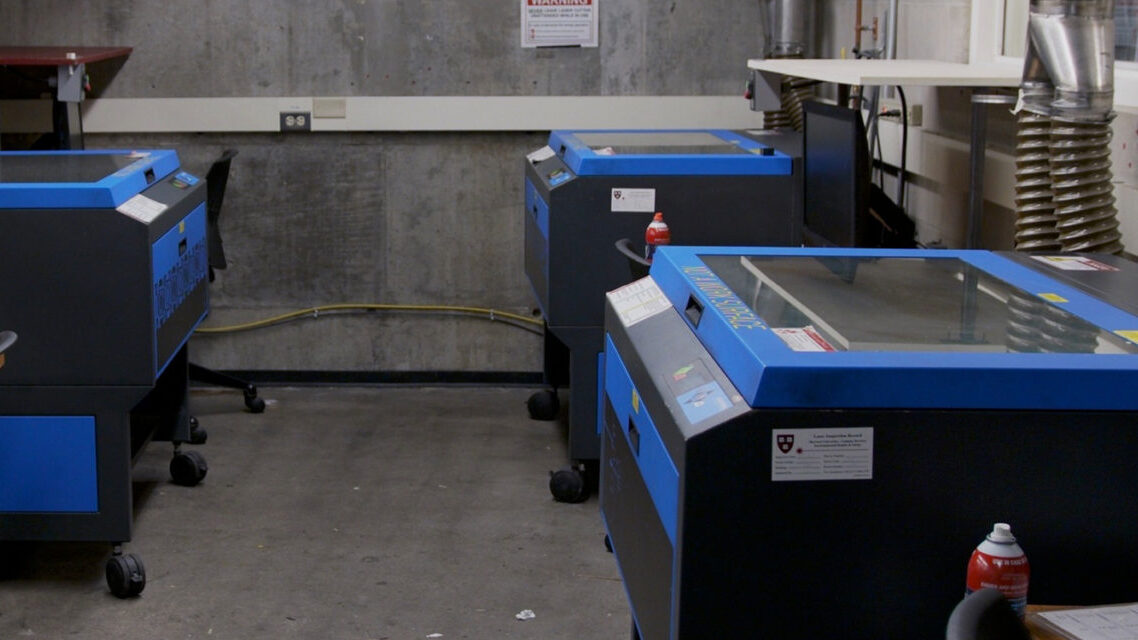
Laser Cutter Hours
While the Laser Cutters are typically available whenever Gund Hall is open during the academic semesters, hours may be limited in the summer and between semesters.
Check the Calendar to determine when Technical Assistants are on duty or whether the space is closed.
Need Help?
Contact a Laser Cutter Technical Assistant by email at [email protected] or visit us in Gund L40 during the office hours listed on the Calendar.
Laser Room Cameras
View the Front Laser Room Camera, Gund L40
View the Rear Laser Room Camera, Gund L40E
(Must be connected to the Harvard network by being on-campus, or connected via VPN to view remotely.)
Reserve a Laser Cutter
Please use the FabJob App to reserve up to 2 hours of Laser Cutter time per day.
The Fabrication Lab is intended for the use of the faculty, staff, and students enrolled in courses at the Graduate School of Design pursuing academic work. Please see our Policies page for more information.